Almost every problem people report with this mod traces back to the install, and almost every install problem is an ordering or version issue. This is the long version of the process, written so you can follow it without prior modding experience.
Step 1: know your Minecraft version
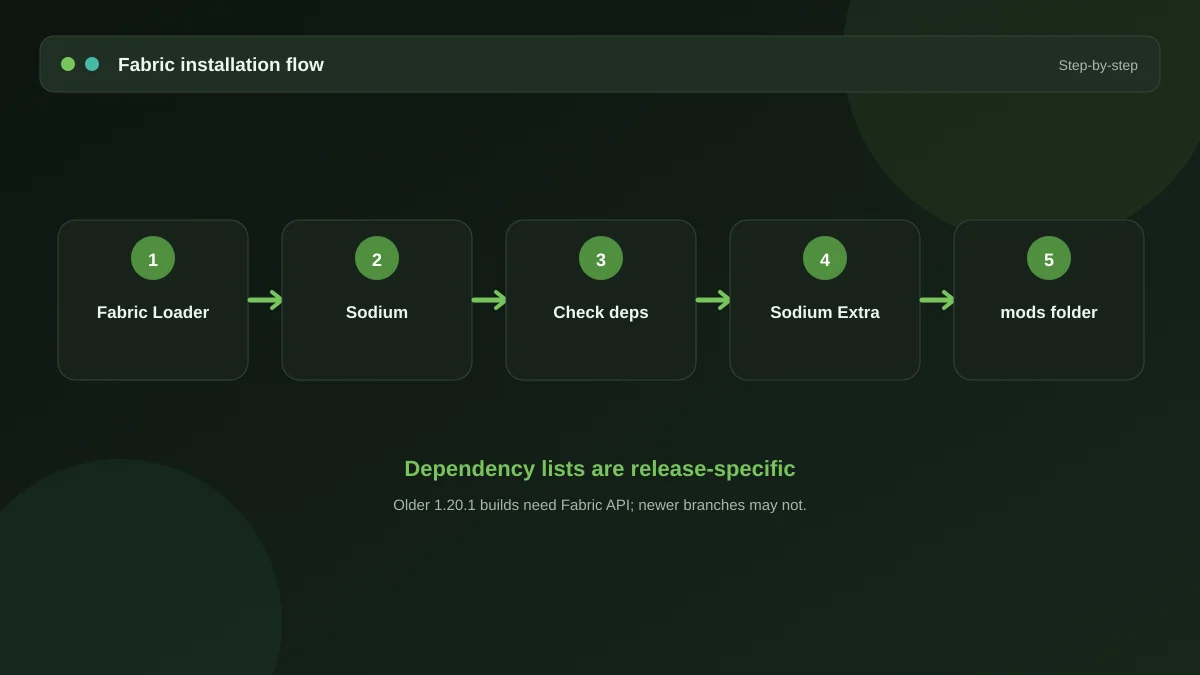
Open the launcher and read the version you actually play. Write it down. Every file below has to be built for that number. Mixing versions is the single largest cause of a mod that appears to do nothing.
Step 2: install Fabric Loader
Fabric is the mod loader that sits between Minecraft and your mods. Download the official Fabric installer, choose your Minecraft version, and let it create a launcher profile. Launch that profile once so the game generates the folders it needs, then close it.
If you use a third-party launcher with instance management, create the instance there instead and select Fabric as the loader during setup. The rest of the steps are identical, but the mods folder lives inside the instance rather than in the shared Minecraft directory.
Step 3: add Fabric API
Fabric API is a shared library. It is not optional here — Sodium Extra expects it. Download the build matching your Minecraft version and set it aside with the other files.
Step 4: install Sodium
Sodium is the renderer. Sodium Extra extends Sodium's settings screen, so without Sodium there is literally nothing for it to extend. Get the matching Sodium build before you continue.
Step 5: find the mods folder
The folder is created the first time you launch the Fabric profile. If it is not there, launch once more.
| System | Path |
|---|---|
| Windows | %appdata%\.minecraft\mods |
| macOS | ~/Library/Application Support/minecraft/mods |
| Linux | ~/.minecraft/mods |
On Windows, paste the path into the address bar of File Explorer rather than trying to navigate to it — the AppData folder is hidden by default.
Step 6: drop the files in
Copy Fabric API, Sodium and Sodium Extra into that folder. Do not unzip them, do not rename them, and do not create subfolders. Fabric reads the folder directly.
Step 7: verify it loaded
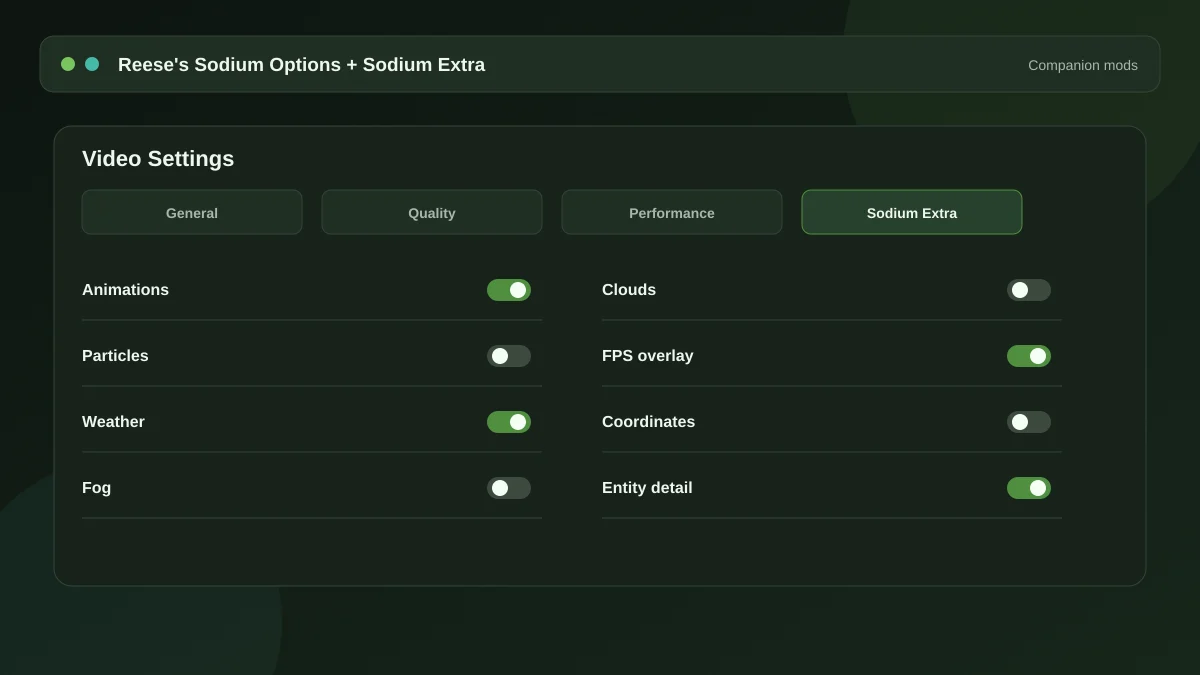
Start the game on the Fabric profile and open Options, then Video Settings. If the installation worked you will see additional option groups that were not there before. If the screen looks unchanged, the mod did not load — and the log will tell you why.
Open
logs/latest.login any text editor and read from the top. Fabric lists every mod it loads and states clearly when it rejects one, usually with the reason attached.
A cleaner menu, optionally
Once Sodium Extra is in place, the video settings screen holds a lot of controls. Many people pair it with Reese's Sodium Options, which reorganises that screen into something considerably easier to navigate.
Where to get the files
Stick to the project's official repository and its listings on the established mod platforms. A Sodium extra Modrinth page is where most players end up, and our download guide explains how to read the file list there. Avoid aggregator sites offering "fast downloads" or bundled installers — they are the usual source of malware in this category.
If you are on Forge
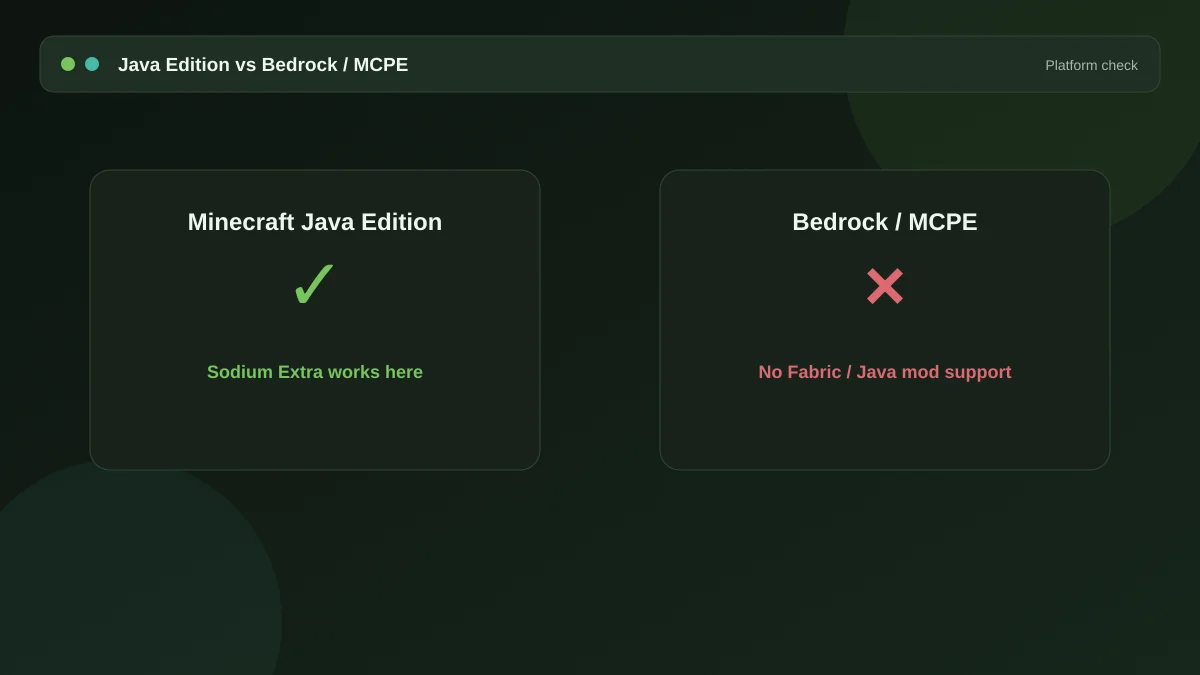
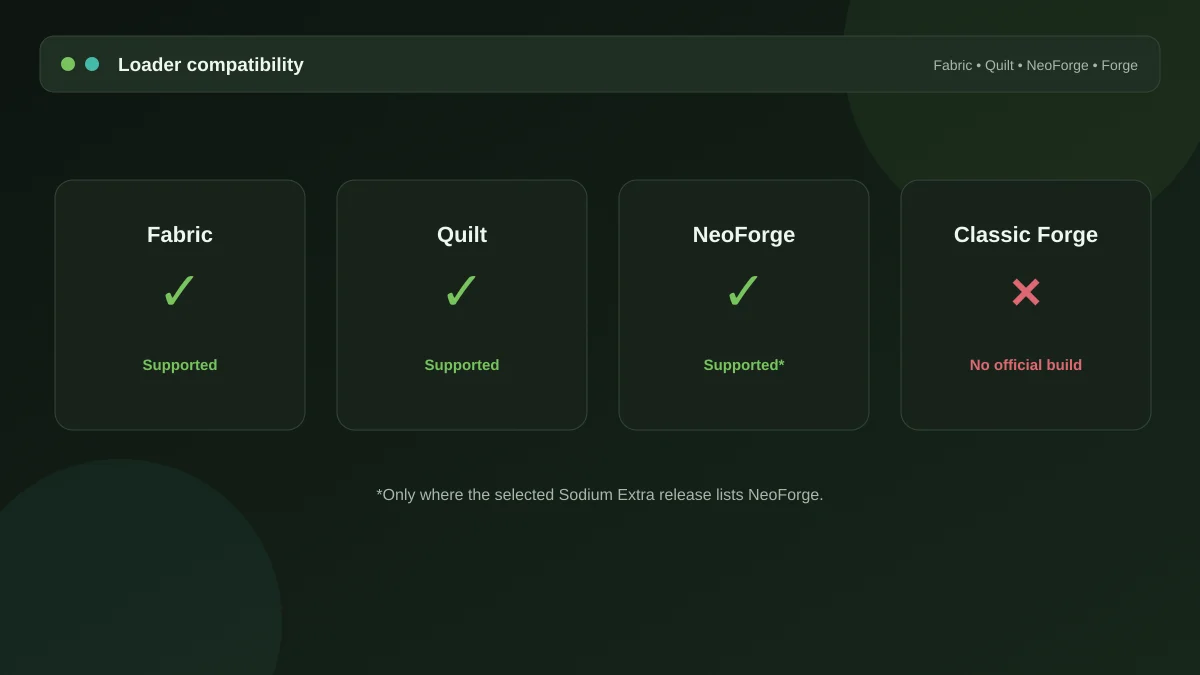
This guide will not help, because Fabric and Forge are different loaders entirely. See our Forge and NeoForge compatibility guide for what your options actually are.
Get the mod
The package and the full dependency list live on the homepage, along with the ten-minute setup walkthrough.
Download Now