Particle control
Switch particle categories on or off individually instead of accepting one blunt vanilla slider. Explosions, splashes, block breaking and ambient effects each get their own control.
Highest impact on weak GPUsSodium is fast because it strips its options screen down to the essentials. Sodium Extra hands the rest back: particles, fog, sky, weather, block animations, entity detail and on-screen overlays, each with its own switch — so you trade the effects you do not need for the frames you do.
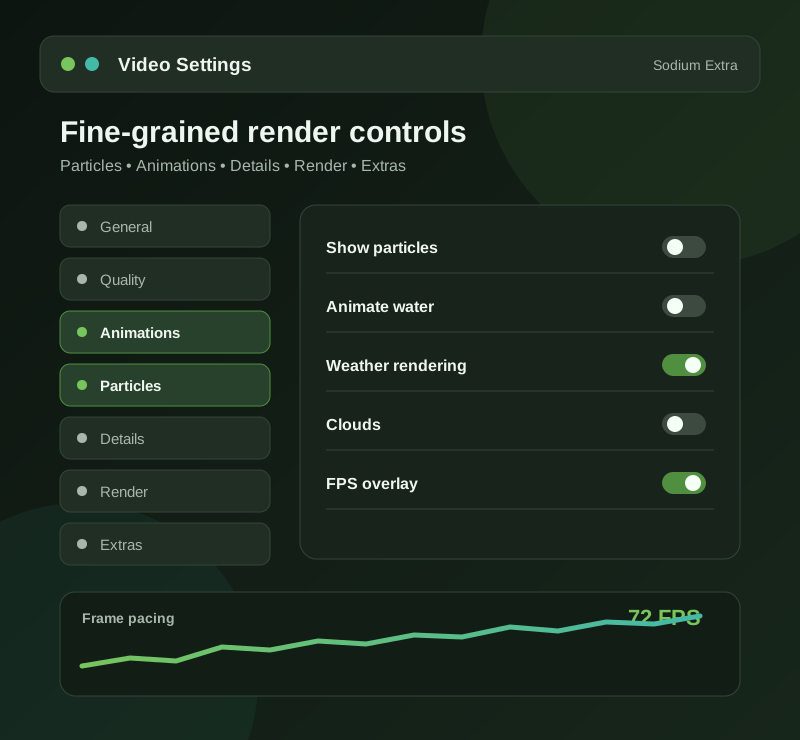
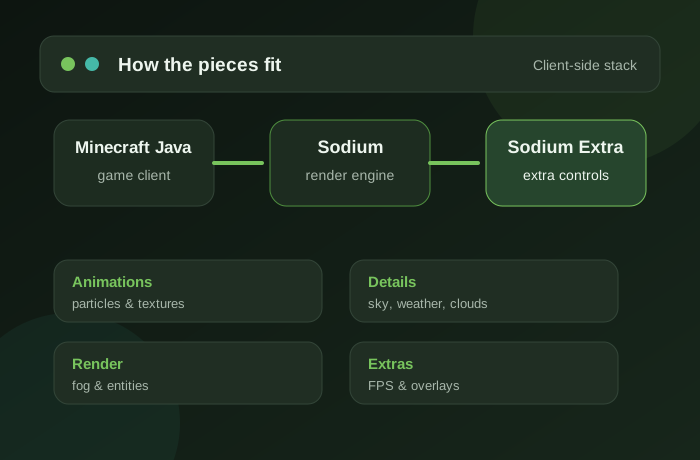
The Sodium Extra Mod is a small client-side add-on for Minecraft Java Edition. Sodium itself is a rendering engine replacement — it makes the game draw chunks far more efficiently, and it deliberately ships a compact settings menu. Sodium Extra fills that menu back in.
What you get is not a second optimiser. It is a control panel. Every switch corresponds to a piece of work the game does on each frame, and turning one off removes that work. On a modern graphics card the difference may be modest. On a five-year-old laptop with integrated graphics, switching off particles and animated textures is often the gap between twenty-something frames and something you can actually play.
It is developed as an open-source project by FlashyReese, the same developer behind Reese's Sodium Options, and it is distributed free through the usual Minecraft mod platforms.
Each group maps to a category of render work. You do not have to understand the engine to use them — switch something off, watch the counter, keep the change if it helped.
Switch particle categories on or off individually instead of accepting one blunt vanilla slider. Explosions, splashes, block breaking and ambient effects each get their own control.
Highest impact on weak GPUsReduce or remove distance fog, sky rendering, star fields and cloud layers. Useful when fog is hiding terrain you want to see, and useful again when clouds are costing frames.
Visibility and performanceStop animated textures — water, lava, fire, portals — from updating every frame. On integrated graphics this is one of the cheapest wins available.
Cheap framesTune how far item frames, armour stands and block entities render, and how much biome blending the game calculates when loading chunks.
Chunk load smoothingA built-in frame rate counter and coordinate readout with position options, so you can measure the effect of a change without installing a separate HUD mod.
Measure before you tweakFrame rate limits and vertical sync behaviour sit alongside everything else, which makes it easy to cap output for a quieter laptop fan or a steadier recording.
Laptops and captureThe mod does not optimise anything by itself. It exposes the switches, and the saving comes from what you decide to stop drawing.
Sodium replaces Minecraft's chunk renderer with a faster one, but ships a deliberately small options screen.
The add-on hooks into the same settings system and registers its own option groups, so everything stays in one place.
Each toggle maps to a real piece of render work. Switching one off removes that work from every frame.
Options take effect as you set them and are written to a config file, so your choices survive a restart.
The mod is worth installing in some situations far more than others. These are the four that come up most often.
The machines that gain most. Cutting particles, animations and weather often turns a stuttering session into a playable one.
Fewer particles and less weather means a cleaner view of what is actually happening in a fight, plus steadier frame pacing.
Capping frame rate and removing visual noise keeps encoder load predictable and footage readable.
When a pack layers shaders, structures and entities on top of each other, per-feature toggles are far more useful than one graphics slider.
Two questions come up constantly: Forge and Bedrock. Here are the straight answers before you spend an evening searching.
| Platform or loader | Status |
|---|---|
| Minecraft Java Edition | Supported |
| Fabric Loader | Primary target |
| Quilt Loader | Usually works |
| NeoForge | Recent builds only |
| Forge (legacy) | Not supported |
| Bedrock Edition and MCPE | Not possible |
| Server installation | Not required |
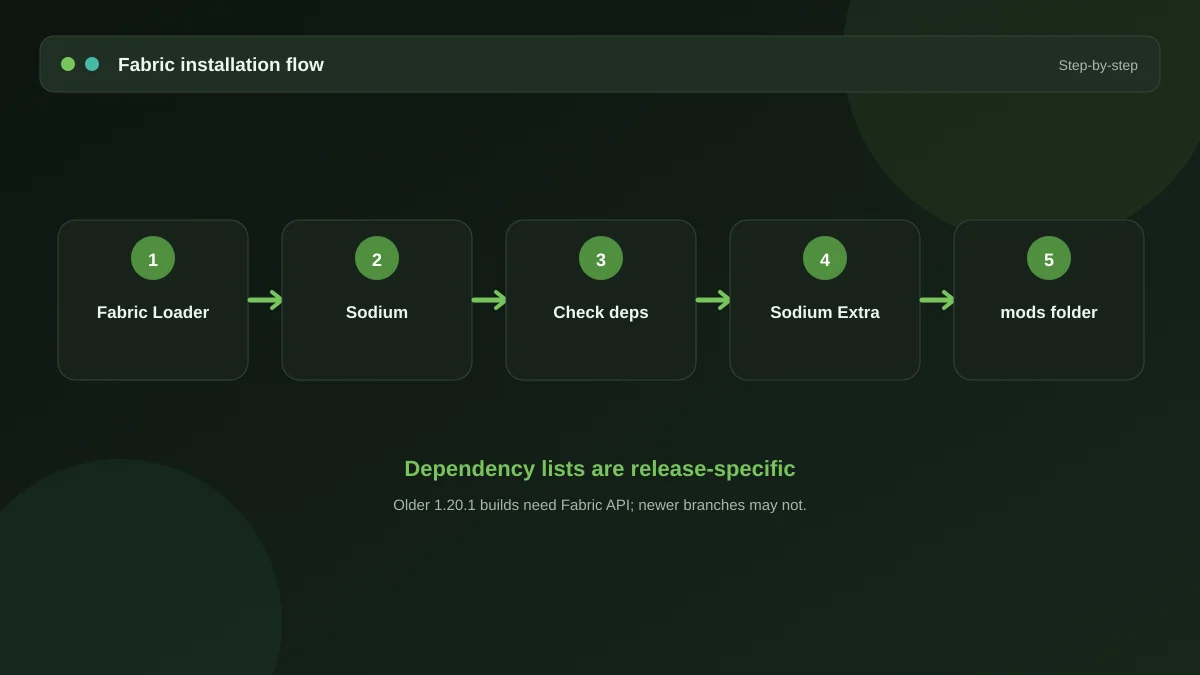
Order matters. Loader, then API, then Sodium, then this mod — and every file has to be built for the same Minecraft version.
Open the launcher and note the exact version you play — 1.20.1 and 1.21.10 need different files. Everything below has to match that number.
Run the Fabric installer for that Minecraft version and let it create a new launcher profile. Start the game once so the profile finishes setting itself up.
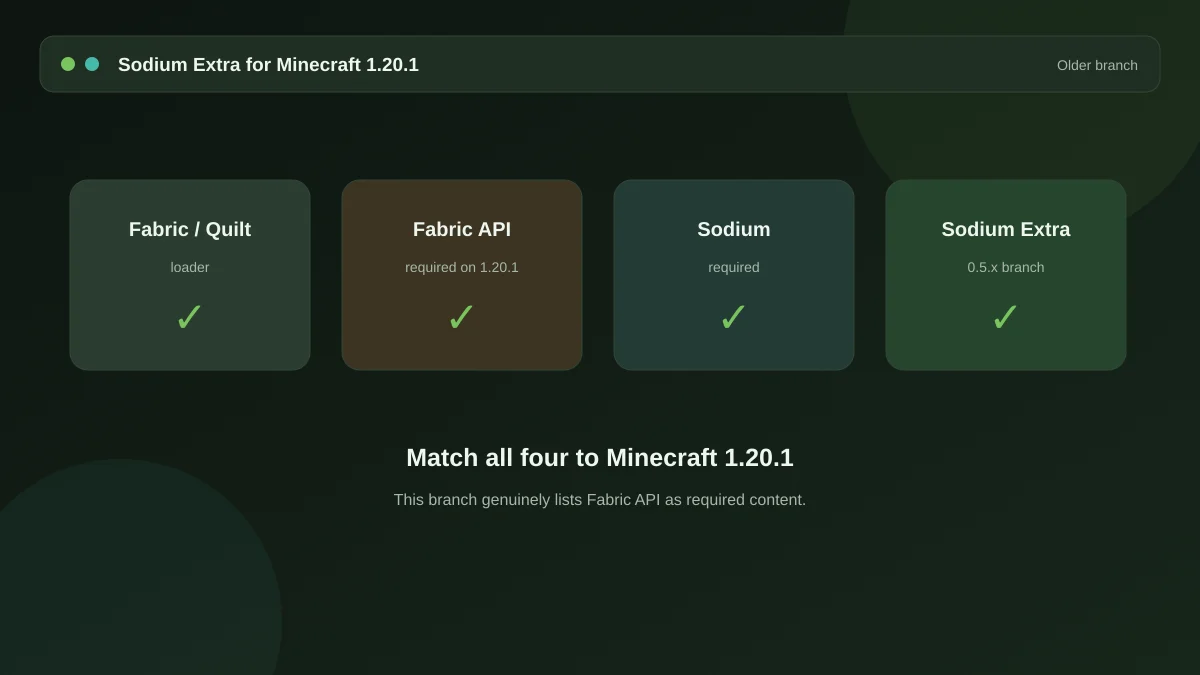
Fabric API is the shared library nearly every Fabric mod expects, Sodium Extra included. Download the build for your version and put it in the mods folder.
Sodium is the renderer that Sodium Extra attaches to. Without it the add-on has nothing to extend and simply will not load.
Place the mod file next to the others in .minecraft/mods, or in the mods folder of the
specific instance you are using.
Start the Fabric profile, open Options then Video Settings, and you will find the new option groups waiting. Adjust, then check your frame rate.
The button below opens the tagged source archive published on the project's official repository. It is the same code the release builds are compiled from, and it costs nothing.
 Download Sodium Extra Mod
Prefer a ready-to-drop mod file? Release builds are published on the project's Modrinth and CurseForge listings under the same name — our Modrinth download guide explains how to pick the right one.
Minecraft mods are one of the most heavily impersonated download categories there is. A few habits keep you out of trouble.
saves and config folders before adding mods..exe — real mods are .jar files.Details of the archive linked on this page, plus the areas recent releases have concentrated on.
| Software name | Sodium Extra |
|---|---|
| Package format | ZIP source archive |
| Mod loader | Fabric (NeoForge on recent builds) |
| Game edition | Minecraft Java Edition |
| Dependencies | Fabric API, Sodium |
| Side | Client only |
| Licensing | Open source — see the repository |
| Price | Free |
| Page updated | 2026-09-08 |
Always read the release notes on the tag you download — they are the authoritative record for that build.
It is a good mod with a narrow job. Knowing the limits saves you an hour of troubleshooting.
Work through these before reinstalling anything. The log file usually answers the question in its first few lines.
Video Settings looks exactly like it did before you installed anything.
Fix: Confirm Sodium loaded first and that both files target your Minecraft version.
The launcher throws you back to the main screen within seconds.
Fix: Read the first error in logs/latest.log; a mismatched dependency is
the usual cause.
Crashes or garbled rendering when both are installed.
Fix: Pick one. OptiFine and the Sodium family rewrite the same systems and cannot share a profile.
Your carefully tuned toggles keep reverting to defaults.
Fix: Check that the config folder is writable and that no launcher setting restores the instance on close.
Fog or clouds stay visible no matter what you switch off.
Fix: The shader is drawing them. Change the equivalent option inside the shader pack instead.
Everything installed correctly but the counter looks identical.
Fix: Your bottleneck is elsewhere — try render distance, or check whether the CPU rather than the GPU is the limit.
Version-specific setup, loader questions and the settings that actually move the frame counter.
Getting the 1.21.10 build running, then a short list of switches that make a measurable difference on the first evening.
1.20.1 refuses to die, and for good reason. Here is how to add Sodium Extra to a pack that is staying put.
Loader, API, Sodium, add-on — in that order. The full path for every operating system, and how to confirm it worked.
Twenty answers covering setup, loaders, editions, options and the errors people run into most.
Sodium Extra is a client-side add-on for the Sodium rendering mod on Minecraft Java Edition. Sodium rewrites how the game draws the world; Sodium Extra puts a large set of individual video options back into that settings screen — particles, fog, sky, clouds, weather, block animations, entity detail and on-screen overlays — so you can decide exactly what your graphics card spends its time on.
Yes. Sodium Extra has nothing to attach to on its own and will refuse to load without Sodium present. Install Fabric Loader, then Fabric API, then Sodium, and add Sodium Extra last. Every one of those files has to match the same Minecraft version.
Fabric is its home. Builds are published for Fabric Loader first and that combination gets the most testing, which is why most guides you will find are written around Sodium Extra mod Fabric setups. Quilt users generally have success too, because Quilt runs Fabric mods, but that path is not officially guaranteed.
Classic Forge is not supported and never has been — the mod is built against Fabric's hooks. Newer Sodium releases added NeoForge builds, and recent Sodium Extra versions follow along, so a modern NeoForge pack may work. Older packs searching for a Sodium extra mod forge build should look at the Embeddium family of ports instead.
No. Sodium Extra Mod MCPE is a common search, but Pocket Edition runs the Bedrock engine, which has no Fabric loader and no Java mod support. Anything advertised as an MCPE build of this mod is not the real project. Bedrock players are limited to resource packs and the in-game video settings.
It does not. Sodium Extra Mod Bedrock builds do not exist, on console, mobile or the Windows Bedrock client. The mod depends on Java-only rendering internals. If you play both editions, the mod will only help on your Java installation.
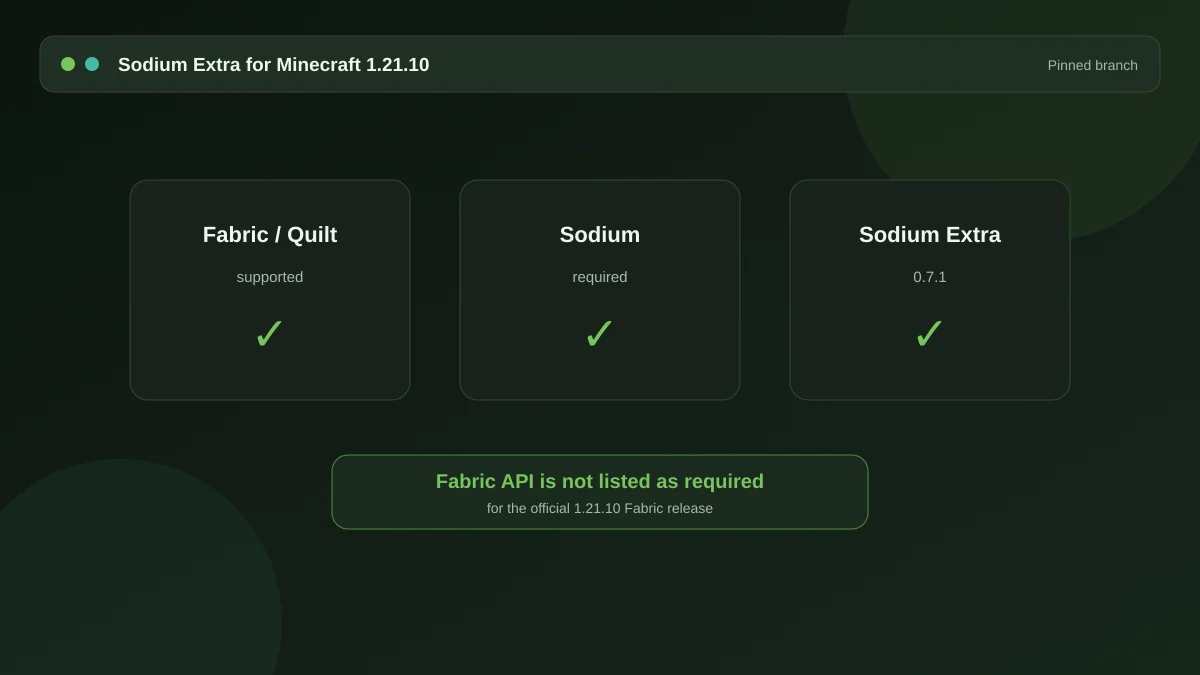
The project follows current Minecraft releases and keeps older branches around. Long-running modpacks still lean on Sodium Extra mod 1.20 1, while newer setups are on the 1.21 line including Sodium extra mod 1.21 10. Always download the file whose version tag matches your game exactly — a 1.20 build will not load in 1.21.
Mod files go in the mods folder inside your Minecraft directory:
%appdata%\.minecraft\mods on Windows,
~/Library/Application Support/minecraft/mods on macOS, ~/.minecraft/mods
on Linux. If you use a launcher with separate instances, drop it into that instance's mods folder
rather than the shared one.
No. It is purely client-side. The server never sees it, other players are unaffected, and you can join any vanilla or modded server with it enabled.
Yes, and many people do. Reese's Sodium Options redesigns the video settings screen into a wider, easier layout, which helps a lot once Sodium Extra has added dozens of extra toggles. The two are separate downloads from the same developer and are built to sit alongside each other.
Installing it changes nothing by itself — it adds controls, not optimisations. The frame rate comes from what you switch off afterwards. On a machine that is struggling, disabling particles, weather and block animations can be worth a noticeable number of frames; on a modern GPU the difference may be small.
Particles and block animations usually top the list, followed by weather effects, cloud rendering and entity detail distance. Turning off sky and star rendering helps less than people expect. Change one group at a time and watch the FPS overlay, otherwise you are guessing.
Yes. The overlay group includes a frame rate counter and a coordinate readout with position and alignment settings, so you do not need a separate HUD mod for those two things.
Generally yes — Iris is designed to run beside Sodium, and Sodium Extra's toggles keep working. Some shader packs draw their own sky, fog or clouds, so a few of the extra options will visibly do nothing while that pack is loaded. That is the shader overriding the setting, not a bug.
Almost always a load failure. Check that the mod file actually sits in the mods folder, that Sodium loaded successfully, and that both files are built for your exact Minecraft version. The game log will name the mod it rejected, which usually points straight at a version mismatch.
Remove Sodium Extra and start the game. If it launches, the conflict is with that file — most often
a version mismatch or another rendering mod like OptiFine, which does not coexist with Sodium. Open
logs/latest.log and read the first error, not the last; it names the offending mod.
No. Everything is rendered locally on your machine. Switching off rain or particles hides them for you only; the world state on the server is untouched.
It is a video settings mod and is widely treated as legitimate, in the same category as Sodium itself. That said, strict competitive servers publish their own allow-lists, so check the rules of the specific server before you assume.
Configuration is written to a JSON file in the config folder of your Minecraft
directory. Deleting that file returns every option to its default the next time the game starts,
which is the fastest way to undo a settings mess.
It is a free, open-source project. The code lives on GitHub, and release builds are published to the usual mod platforms — a Sodium extra Modrinth listing is the page most players end up on. Nobody charges for this mod; a site asking for payment or a survey is not an official source.