The 1.21 line is where most active packs now live, and Sodium extra mod 1.21 10 is one of the most searched builds of the whole project. The install is not complicated, but a surprising number of failures come from mixing files across versions, so it is worth doing slowly the first time.
What you need before you start
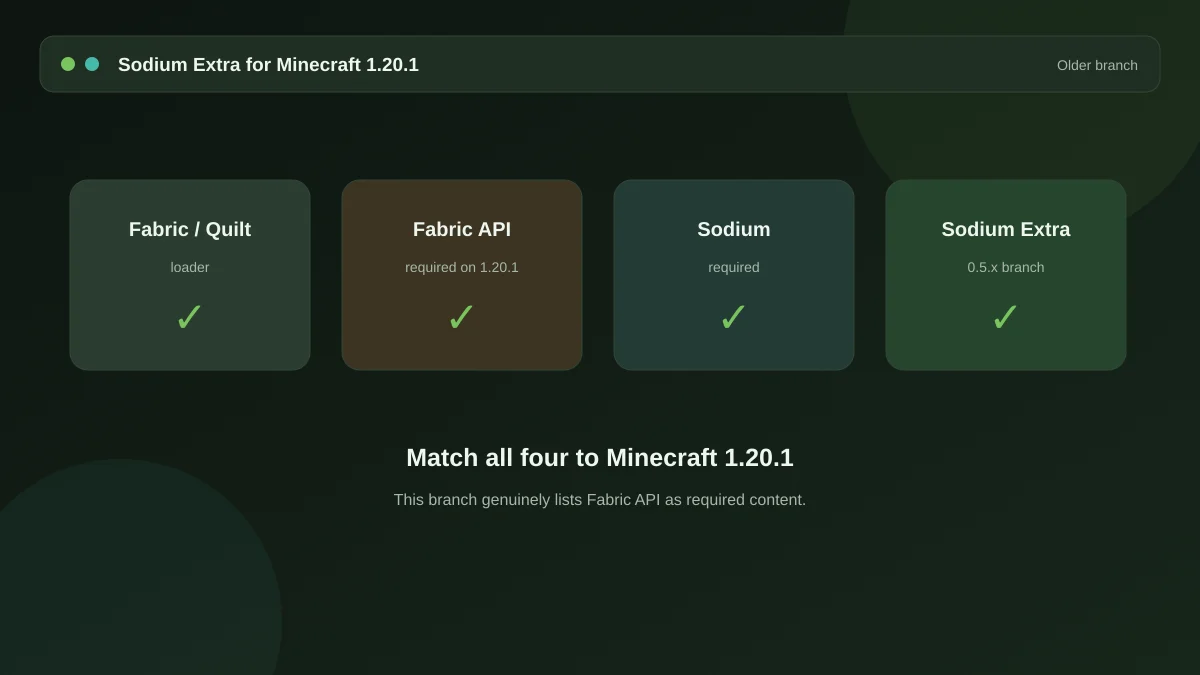
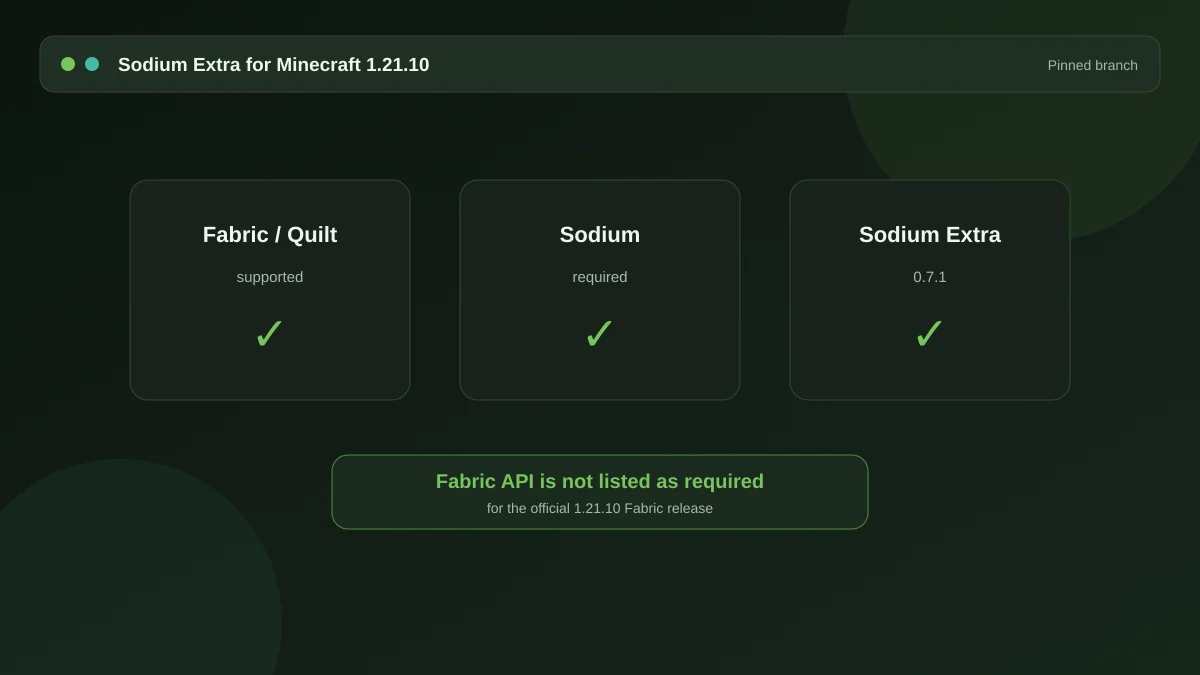
Four things, in this order: Fabric Loader for 1.21.10, Fabric API built for 1.21.10, Sodium built for 1.21.10, and Sodium Extra built for 1.21.10. That is not repetition for its own sake. The single most common reason the mod silently fails to appear is one file left over from a previous version sitting in the same mods folder.
Check your launcher first and confirm the exact version string. Minecraft ships point releases regularly, and a mod compiled for 1.21.8 may or may not load on 1.21.10 depending on what changed underneath. When the mod page lists a range, trust the range. When it lists a single version, match it exactly.
Installing it
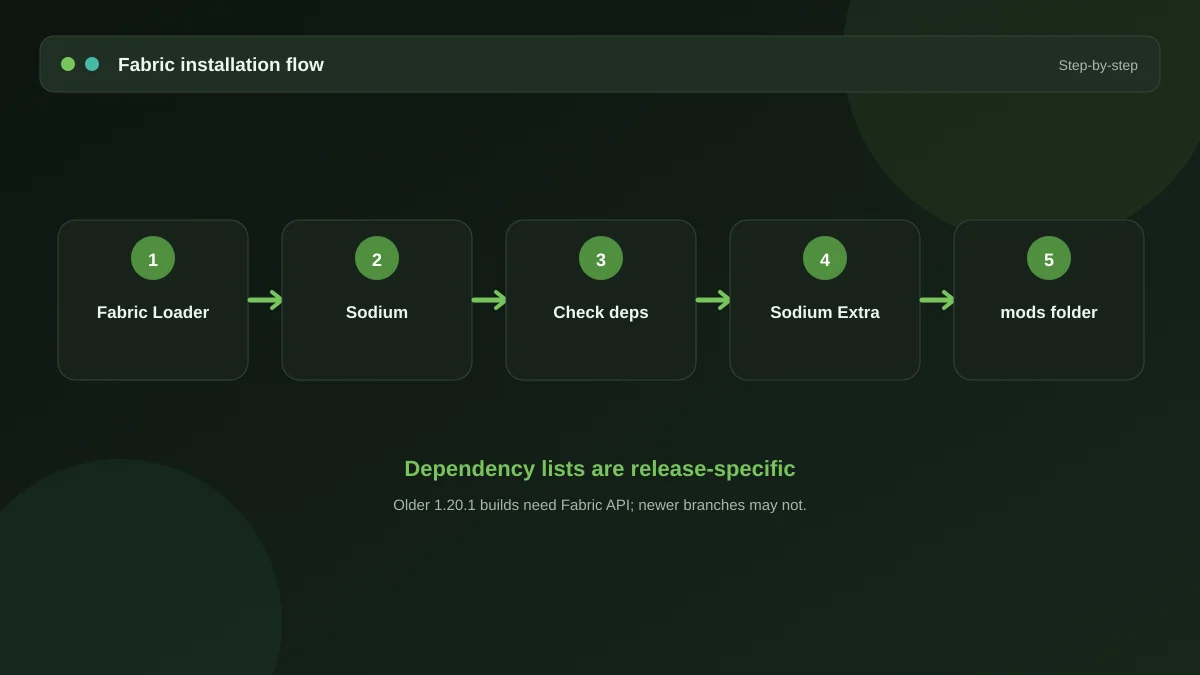
1. Create the Fabric profile
Run the Fabric installer, select 1.21.10, and let it write a new launcher profile. Start the game once and quit. This creates the folder structure the rest of the steps rely on.
2. Clear the mods folder
If you are upgrading from an earlier version, move the old contents somewhere else rather than deleting them. A folder called mods-1.21.4 next to your instance costs nothing and saves you if you need to roll back.
3. Add the files
Drop Fabric API, Sodium and Sodium Extra into mods. Nothing needs to be renamed or unpacked. Our full Fabric installation walkthrough covers the folder paths for each operating system if you are not sure where the directory lives.
The first five options to change
Once the game launches, open Options then Video Settings. The new groups appear alongside Sodium's own. Rather than working through every toggle, start here:
- Turn on the FPS overlay. Do this before anything else. Without a number on screen you are guessing at whether a change helped.
- Disable ambient particles. The general-purpose particle categories are usually the single largest saving on integrated graphics.
- Switch off block animations. Animated water, lava and portal textures update constantly. On weak hardware this is close to free performance.
- Reduce weather rendering. Rain and snow are drawn as a large number of small quads across your view. Cutting them helps most during storms, which is exactly when frame rates dip.
- Cap your frame rate. If you are on a laptop, a limit slightly above your refresh rate keeps the fans quieter without any visible cost.
Change one, look at the counter, keep it if it helped. Doing five at once tells you nothing about which one mattered.
If the options do not appear
The menu looking unchanged after installation nearly always means the mod did not load. Open logs/latest.log and search for the mod name — the loader will state plainly whether it was rejected and why. Version mismatches and a missing Sodium install account for the large majority of cases. Our error and crash guide walks through reading that file.
Upgrading later
When 1.21.10 eventually gives way to the next release, upgrade Sodium and Sodium Extra together. They track each other closely, and running a new Sodium alongside an old add-on is a reliable way to produce a startup crash. Keeping the pair in sync is the whole maintenance burden of this mod.
Get the mod
The package and the full dependency list live on the homepage, along with the ten-minute setup walkthrough.
Download Now