Nearly every report about this mod falls into one of five categories, and four of them are diagnosed from a single file. Before you reinstall anything, learn to read the log — it turns a guessing game into a five-minute job.
Start with the log
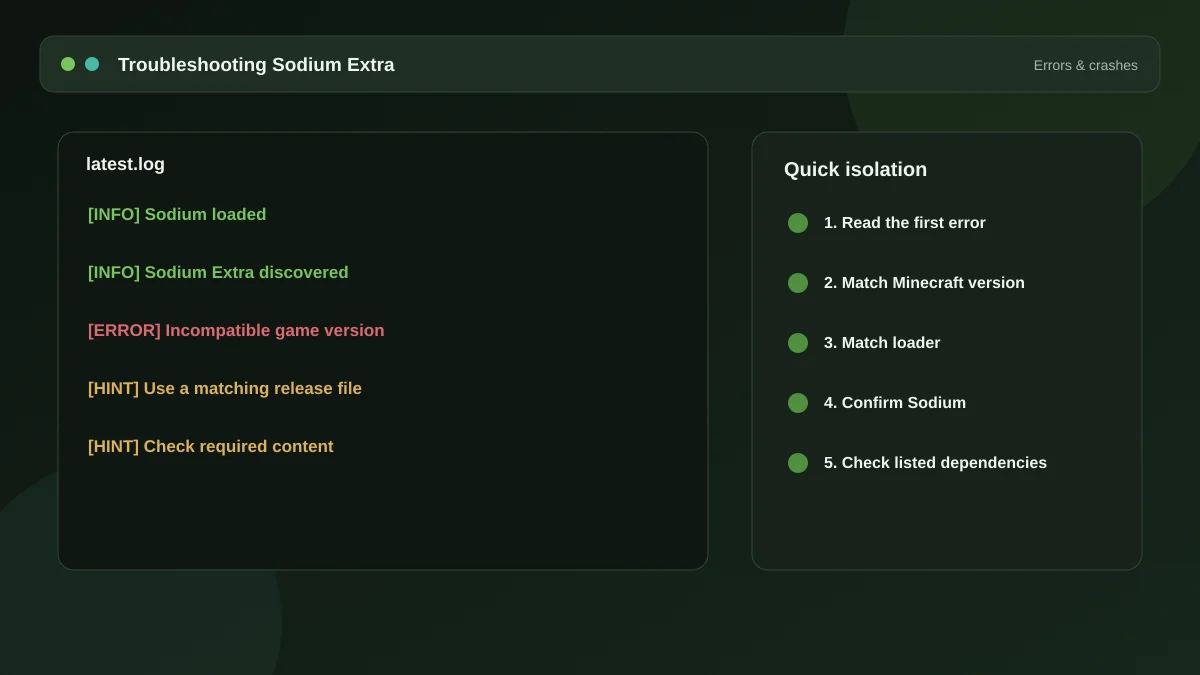
Every launch writes logs/latest.log inside your Minecraft directory. Open it in any text editor and read from the top, not the bottom. Fabric lists the mods it loads early in the file and states plainly when it refuses one.
Search for the mod name. If it is not mentioned at all, the file is not in the folder the game is reading. If it is mentioned with an error beside it, the error text usually names the exact problem.
The first error matters more than the last. Later errors are frequently just consequences of the first one.
Problem 1: the options are missing
Video Settings looks identical to before. This means the mod did not load.
- Confirm the file is in the mods folder of the instance you are actually launching, not a different one.
- Confirm Sodium is installed and loading. Without it the add-on has nothing to attach to.
- Confirm all files target your exact Minecraft version.
- Confirm you are launching the Fabric profile, not vanilla. This catches more people than you would expect.
Problem 2: crash on startup
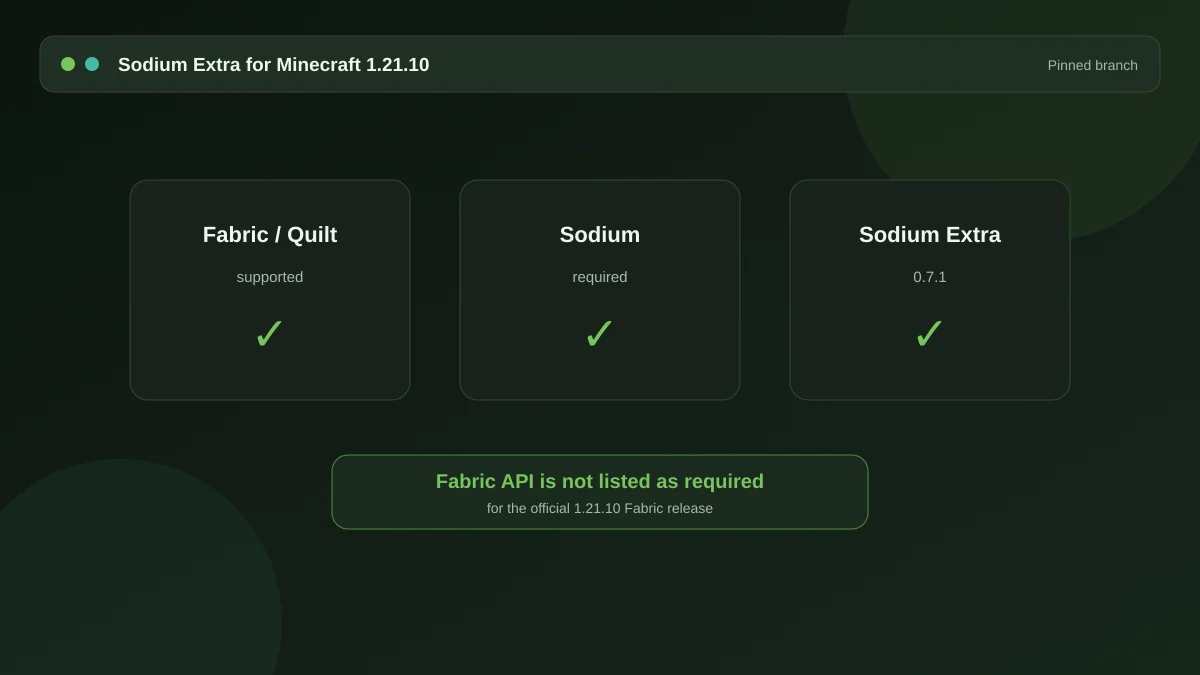
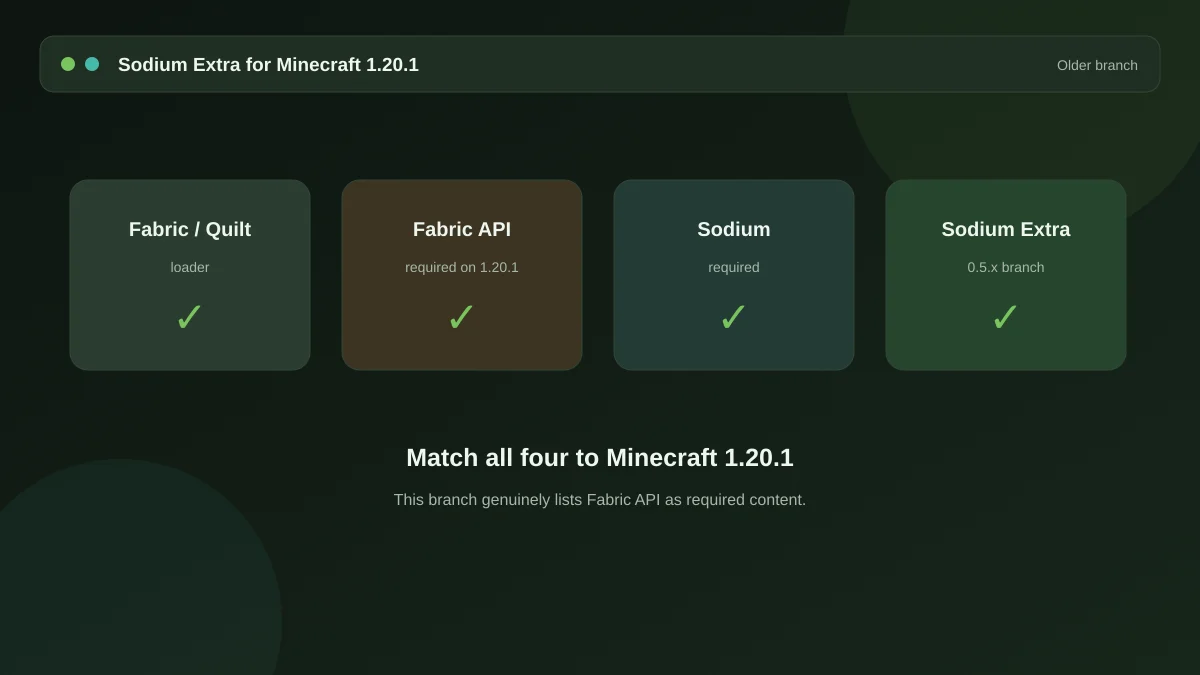
The game closes within seconds of launching. Remove Sodium Extra and try again — if it starts, you have isolated the cause. From there, the usual culprits are a version mismatch, a missing Fabric API, or a Sodium build from a different release than the add-on expects.
Keeping Sodium and Sodium Extra on matching versions solves most of these outright. They are developed in step, and mixing an old add-on with a new renderer is a reliable crash.
Problem 3: conflict with OptiFine
OptiFine and Sodium both replace large parts of Minecraft's rendering. They cannot share an installation. If a pack was built around OptiFine features, you have to choose: keep OptiFine and lose Sodium Extra, or move the instance to the Sodium family and accept losing whatever OptiFine-specific features the pack relied on.
Problem 4: settings will not stick
Options revert to defaults every launch. Check that the config folder is writable — an instance stored somewhere the launcher does not have write access will silently fail to save. Some launchers also have a "restore instance" or read-only mode that reverts changes on exit.
If you want a deliberate reset, deleting the mod's config file in that folder returns every option to default on the next launch. That is often the quickest fix after a settings experiment goes badly.
Problem 5: an option appears to do nothing
Usually a shader pack. Iris shader packs draw their own sky, fog, clouds and sometimes weather, which overrides the equivalent toggle. The setting is working; something else is drawing over the top of it. Change the corresponding option inside the shader pack instead.
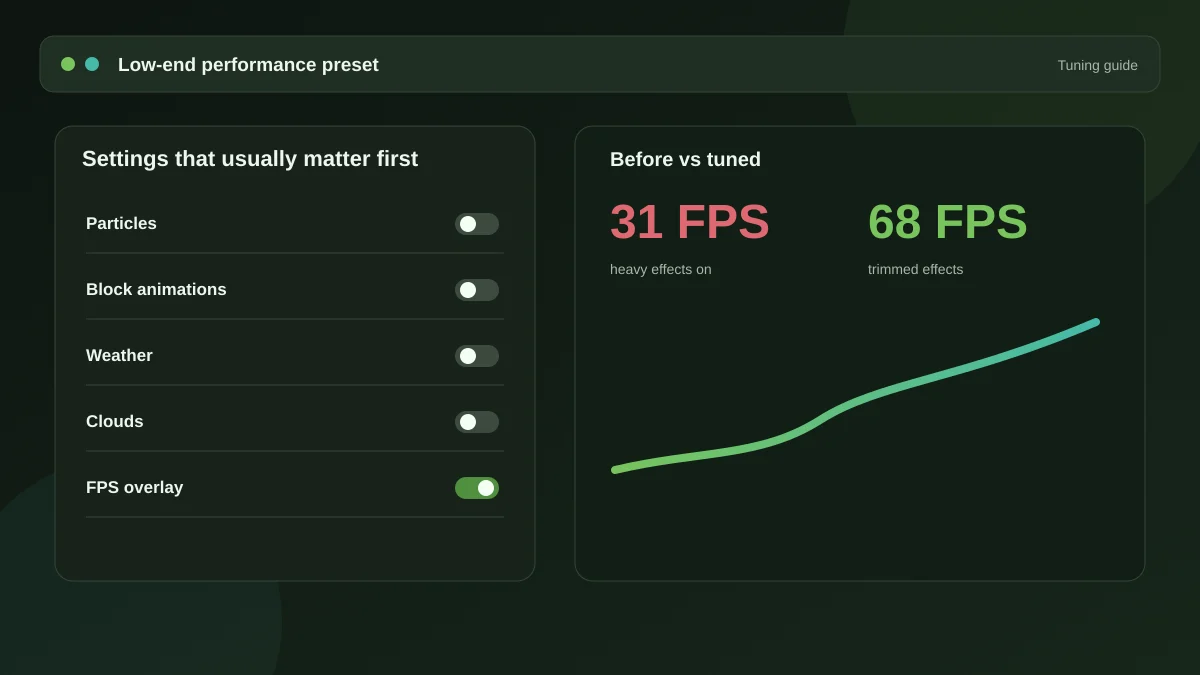
The other explanation is that the option was never your bottleneck. If your frame rate is limited by CPU-side chunk building or by render distance, disabling particles will not move the number. Turn on the frame rate overlay and change one thing at a time — see our settings guide for what tends to matter most.
When to ask for help
If none of the above applies, gather three things before you post anywhere: your Minecraft version, the exact file versions in your mods folder, and the first error from the log. A report with those three items usually gets answered immediately. A report saying "it doesn't work" usually does not.
Version-specific quirks are worth checking too — the 1.21.10 guide and the 1.20.1 guide cover branch-specific behaviour.
Get the mod
The package and the full dependency list live on the homepage, along with the ten-minute setup walkthrough.
Download Now